When deploying a new database environment, starting with the official Evaluation installation and performing an in-place SQL Server 2025 & 2022 upgrade to a permanent Standard license is the most efficient path for sysadmins.
This guide covers the entire deployment architecture : from the initial SQL Server 2022 download to injecting your product key and verifying the engine via SSMS.
(whether you are building on the proven SQL Server 2022 architecture or deploying the new AI-ready SQL Server 2025 engine the steps are exactly the same)
Step 1: The Engine Download
Do not rely on third-party mirrors. Always pull your infrastructure directly from the source.
Download the official Evaluation here: SQL Server 2022 Evaluation Edition
SQL Server 2025 Evaluation : HereLaunch the executable, select your extraction folder, and wait for the package to download.
Step 2: The Installation & Activation Wizard
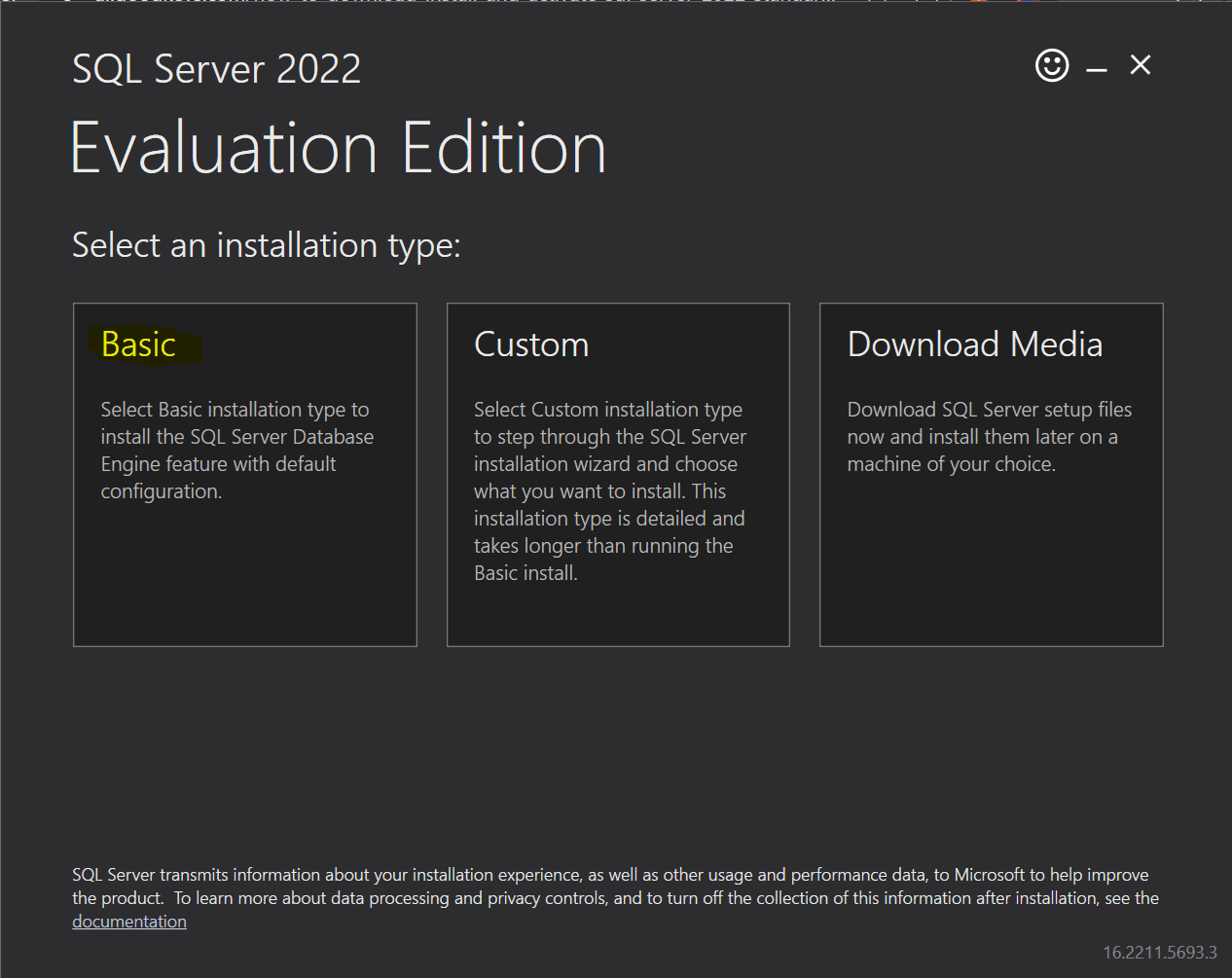
Launch the SQL Server Installation Center. Select New SQL Server stand-alone installation. Select Basic
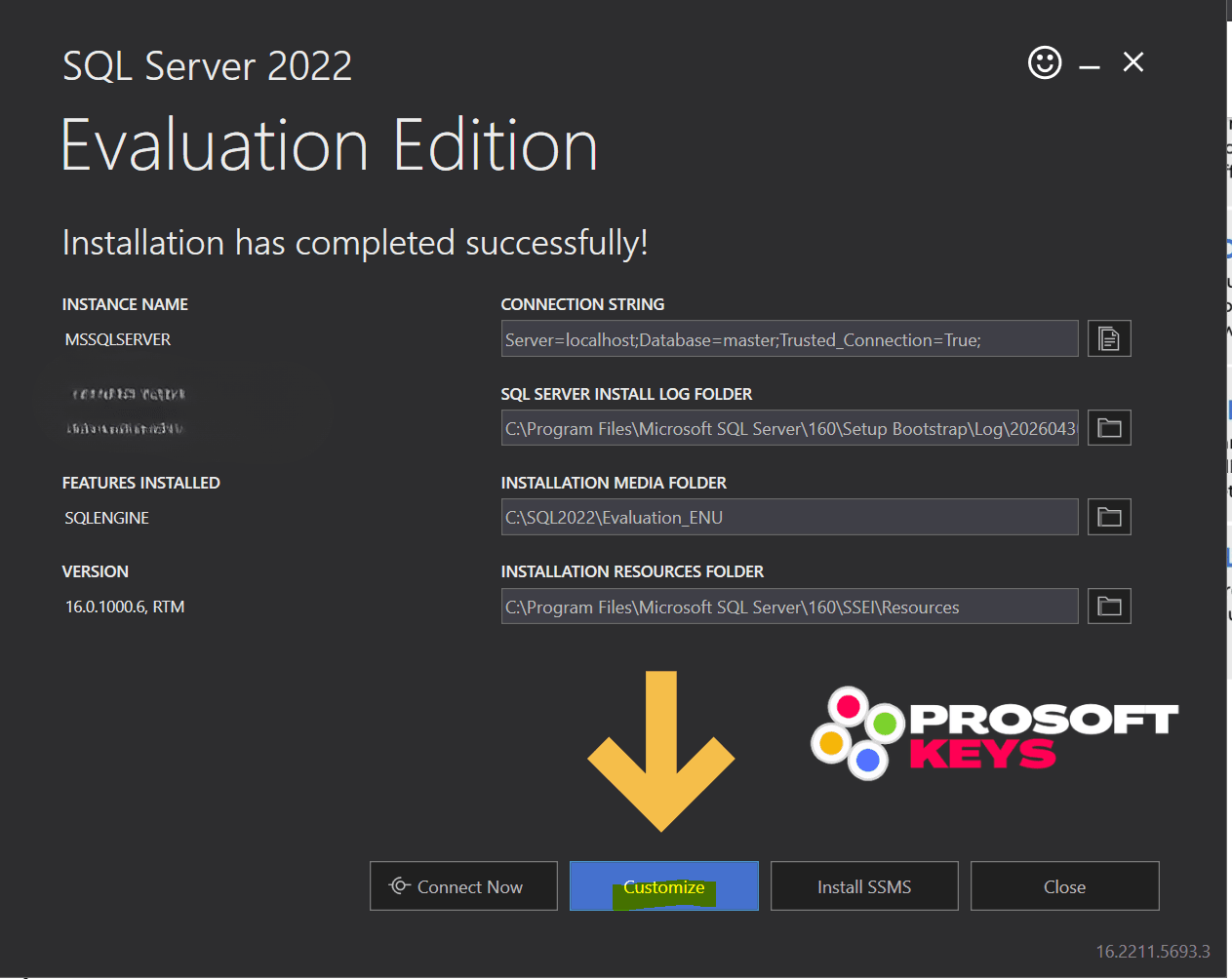
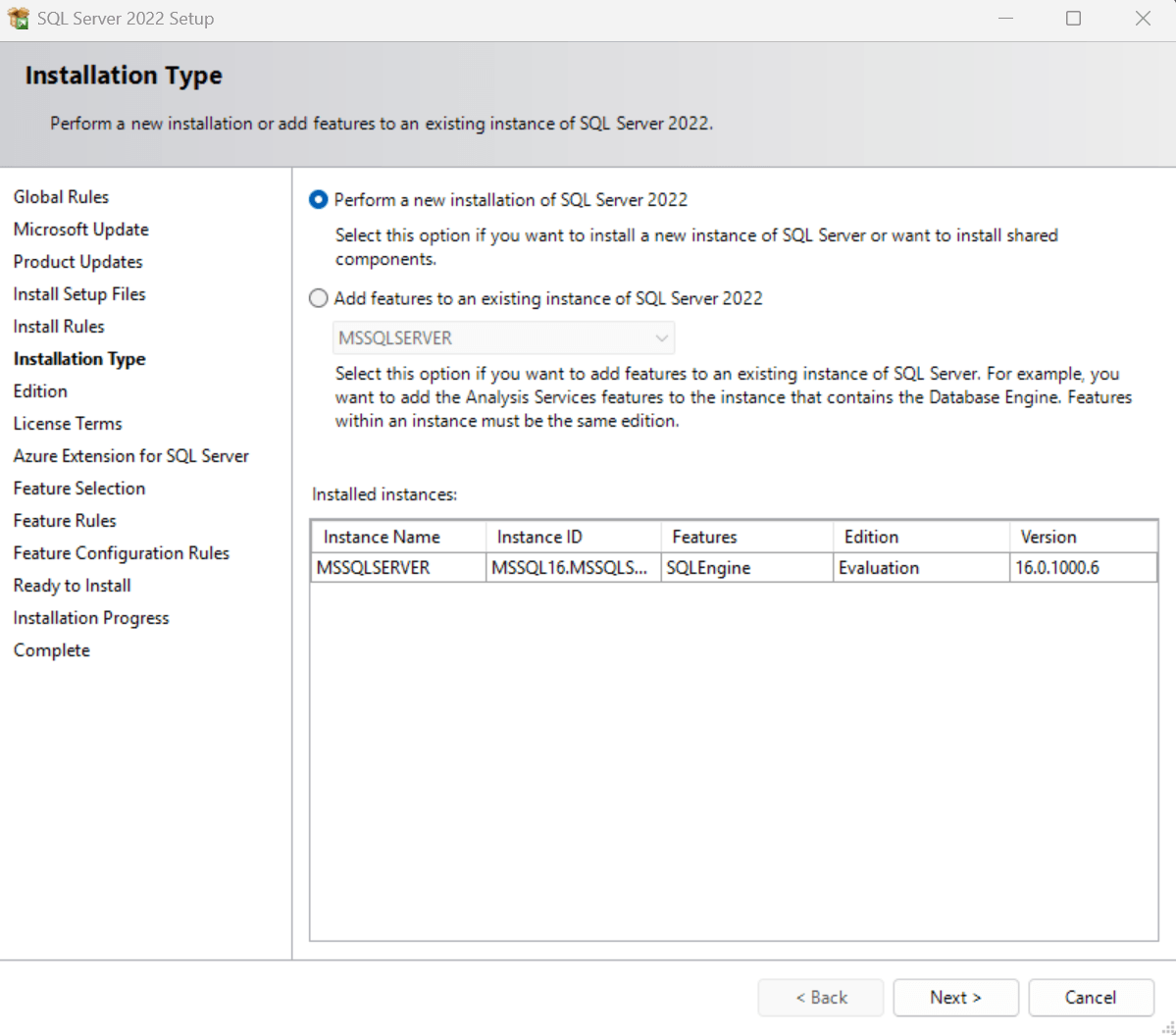
Microsoft Updates: Check or uncheck the inclusion of updates based on your server’s patching policies.
Product Key: This is where you activate the engine. Select “Enter the product key” and input your purchased SQL Server 2025 or 2022 Standard key. (Check the box “I have a SQL Server license only”)
(Don’t have a license yet? Get your SQL SERVER 2022 STANDARD key from ProSoftKeys here).
Buy SQL SERVER 2025 STANDARD Key : HERE
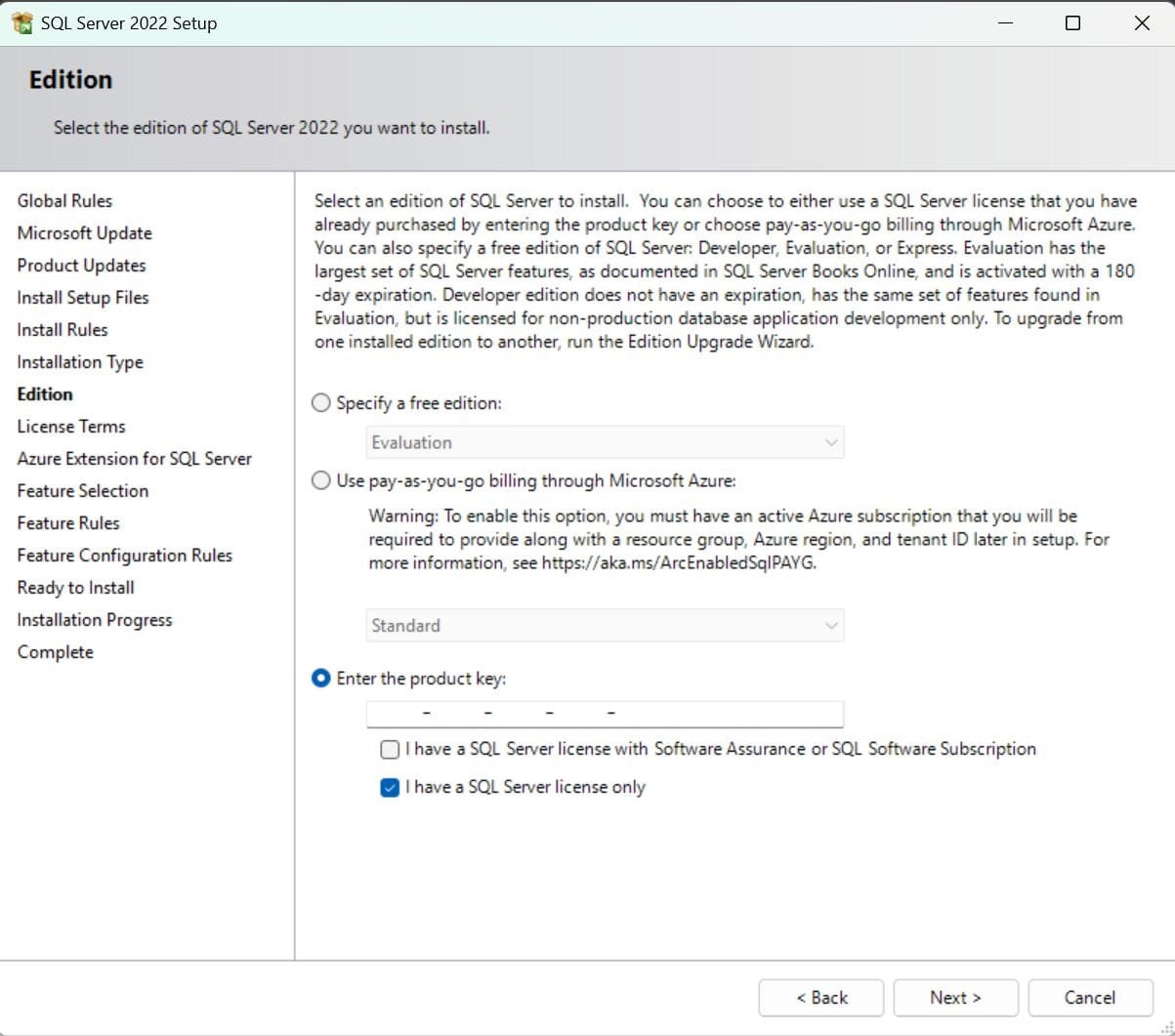 License Terms: Accept the Microsoft licensing terms to proceed.
Azure Extension: Check or uncheck the Azure Arc integration. If you are building a strictly air-gapped, sovereign environment, leave this unchecked.
Step 3: Feature Selection & Engine Configuration
Feature Selection: Check only the features relevant to your needs (e.g., Database Engine Services). Keeping your attack surface small is best practice.
Database Engine Configuration: Navigate to the Server Configuration tab. For simplicity in initial setups, select “Add Current User” to grant your active Windows account administrative rights. Alternatively, configure your specific service accounts as dictated by your security policy.
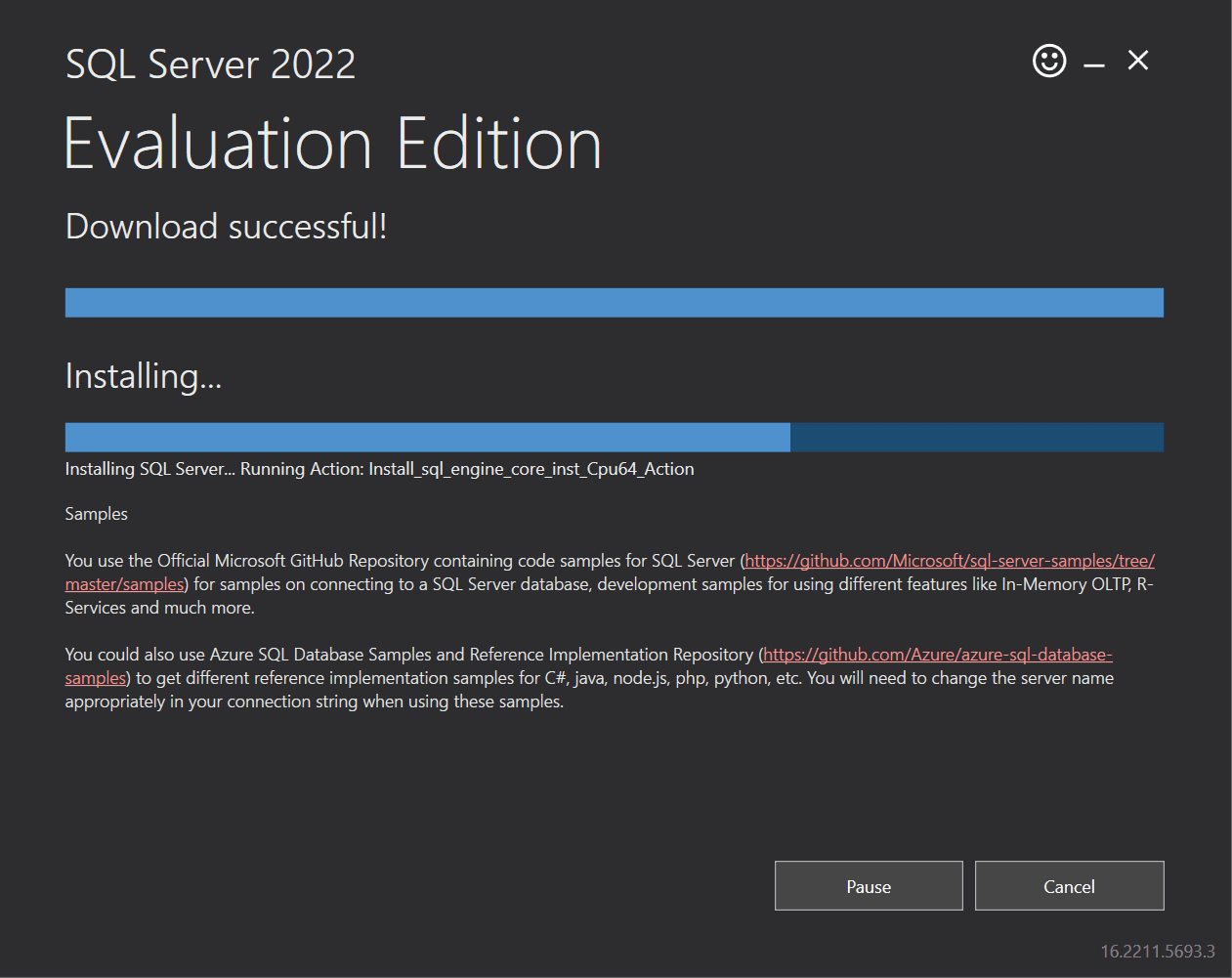
Proceed through any remaining specialized configurations (Analysis Services, etc.) as intended for your specific use case, and click Install.
Step 4: Install SQL Server Management Studio (SSMS)
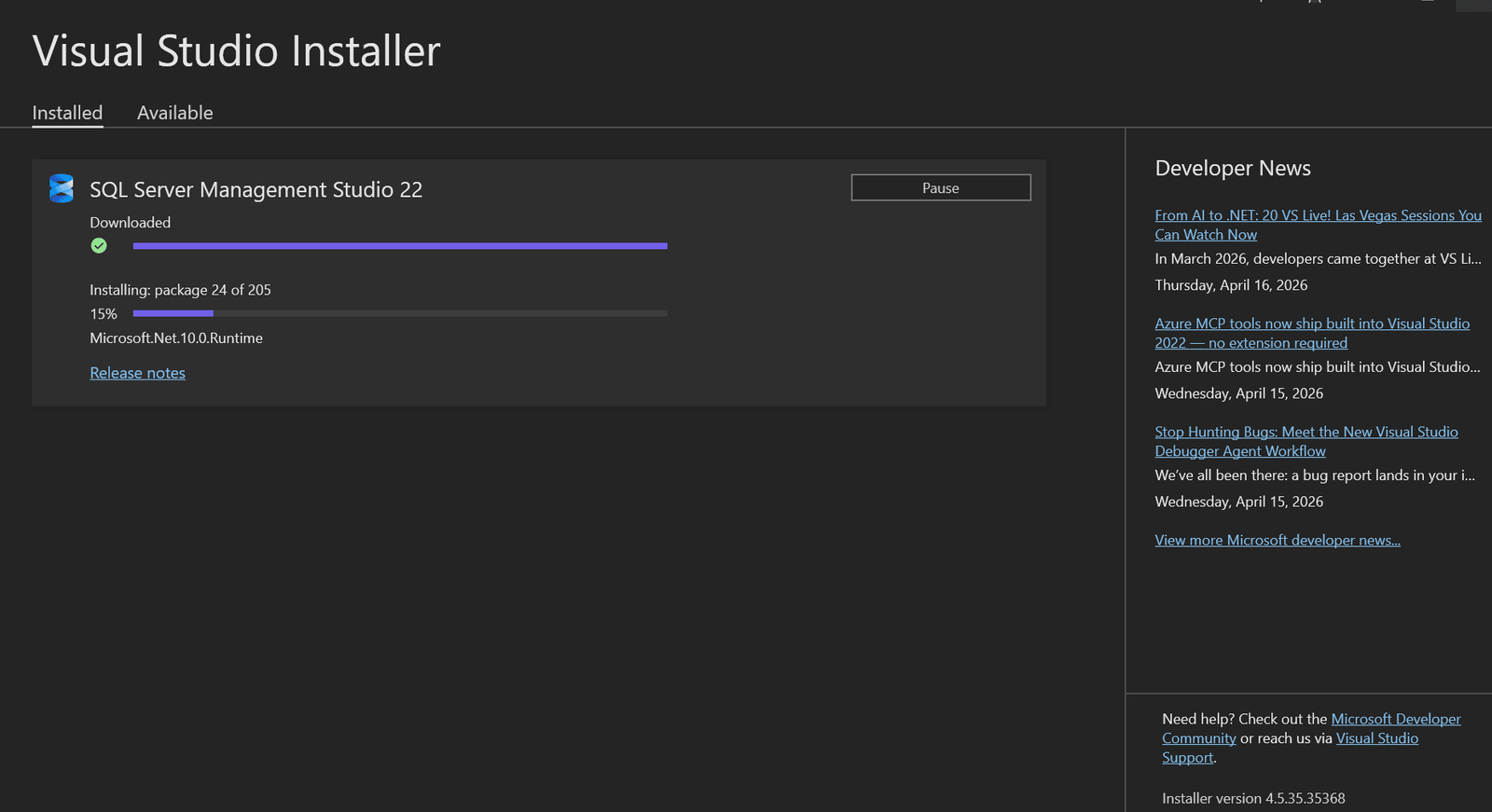
The core SQL Server engine operates without a graphical interface. To manage your databases, you must deploy SSMS. ( If you are deploying SQL Server 2025, you will want to utilize SSMS 22, which includes official ARM64 support and enhanced AI assistance for the new engine.)
Download and install the latest version here: Download SSMS
Step 5: Verify the Standard Edition Activation
Do not assume the key was accepted without verifying the engine level.
Open SSMS and connect to your newly deployed server instance.
Click New Query.
Paste and execute the following T-SQL command:
SELECT SERVERPROPERTY('Edition') AS SQL_Edition,
       SERVERPROPERTY('ProductVersion') AS SQL_Version;
If the activation was successful, the query will return Standard Edition (64-bit). If it says Evaluation Edition, you are still on the 180-day trial clock.
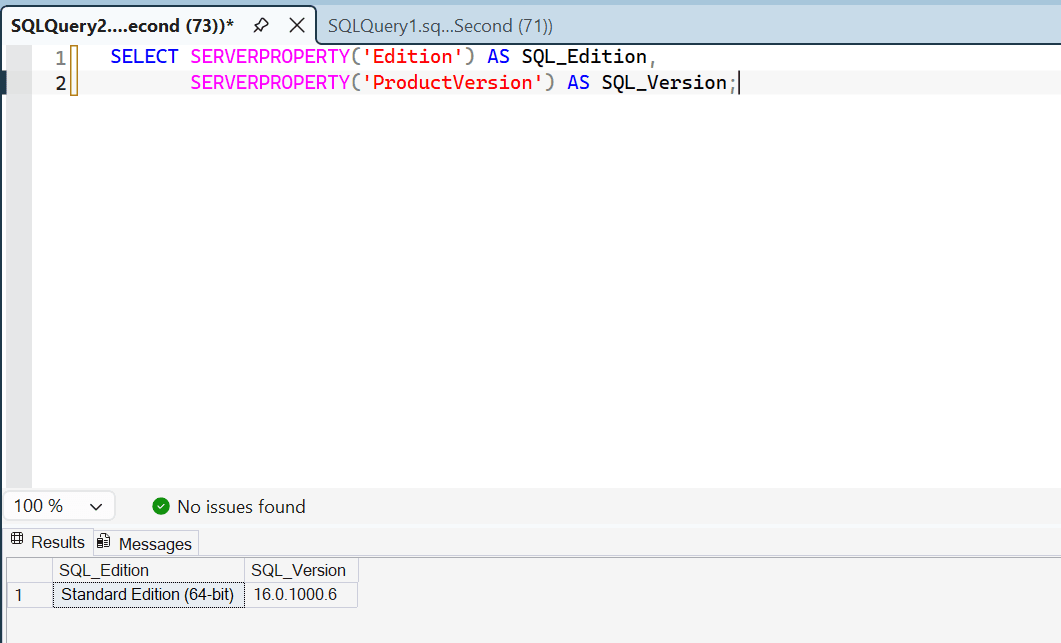
If the activation was successful, the query will return Standard Edition (64-bit) alongside your respective version number (16.0 for 2022, or 17.0 for 2025).
Frequently Asked Questions: SQL Server 2022 Deployment
Is SQL Server 2025 or 2022 free?
SQL Server offers free editions strictly for non-production environments, such as the Express Edition or the Developer Edition. For live, commercial production workloads, you must purchase a valid SQL Server Standard or Enterprise license.
Is SQL Server 2025 the latest version, and is 2022 still relevant?
Yes, SQL Server 2025 is the current, state-of-the-art database engine. However, SQL Server 2022 remains highly relevant and fully supported for organizations that require a proven, established architecture for their on-premises and sovereign infrastructure deployments.
Can I run SQL Server 2022 on Windows Server 2025?
Yes, SQL Server 2022 is fully supported on modern operating systems, including Windows Server 2022 and Windows Server 2025, ensuring hardware and OS compatibility for your long-term infrastructure planning.
How long will SQL Server 2025 and 2022 be supported?
Microsoft follows a standard Fixed Lifecycle Policy for SQL Server, providing 5 years of Mainstream Support followed by 5 years of Extended Support. This means SQL Server 2022 will be securely supported for patching and updates until early 2033, while the newer SQL Server 2025 is scheduled to receive extended support until January 2036.